ChatGPT Photo Editing Prompt: 32 Realistic Edits to Copy
ChatGPT photo editing prompt ideas are growing fast as more people discover that ChatGPT can edit and create images too. You can upload a photo, describe what you want in simple words and get a new version in seconds. ChatGPT is especially good at following detailed instructions, adding clear text to images and creating artistic styles. With the right prompt, it becomes a powerful photo editor in your pocket.
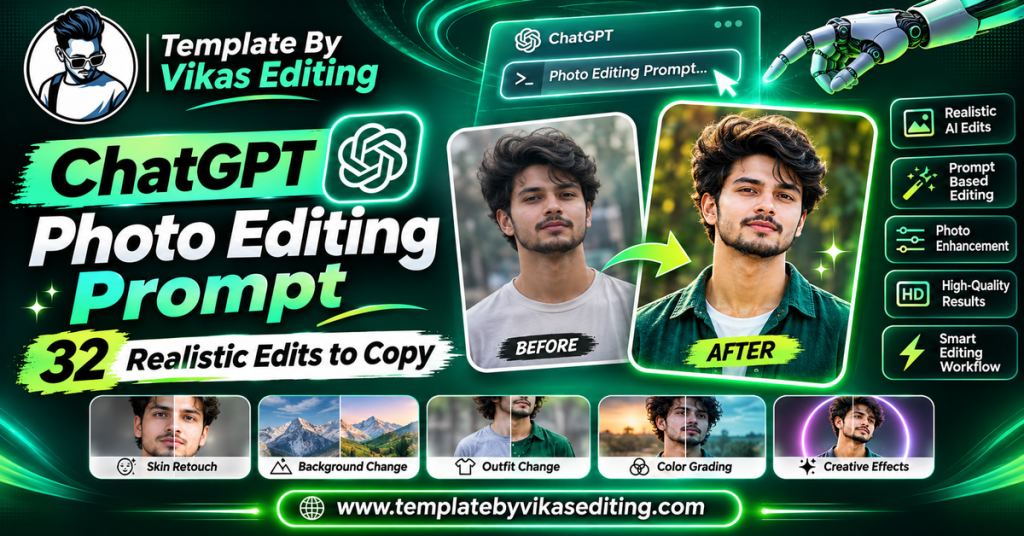
This page shares 32 ChatGPT prompts grouped into four sets: realistic portraits, posters and text-based designs, lifestyle and travel scenes, and quick photo fixes. Each prompt is written to keep your face as close to the original as possible and sits in its own colour box with a copy button.
After the prompts, you will find a simple guide to editing photos in ChatGPT, a comparison with Gemini, tips for keeping faces accurate, a way to write your own prompts, common mistakes and answers to frequent questions.
Realistic Portrait ChatGPT Photo Editing Prompt Ideas
These prompts create polished, natural portraits from your selfie.
1ChatGPT Photo Editing Prompt Studio Headshot
2Warm Window Light Portrait
3Outdoor Golden Hour Portrait
4Black and White Fine Art Portrait
5Rainy Street Cinematic Portrait
6Soft Glow Beauty Portrait
7Traditional Festive Portrait
8Confident Business Portrait
Poster and Text Design Prompts
ChatGPT handles text in images well, which makes it great for posters, covers and greeting designs.
9ChatGPT Photo Editing Prompt Movie Poster With Title
10Motivational Quote Poster
11Birthday Poster With Name
12Event Invitation Card
13Book Cover Design
14Travel Magazine Cover
15YouTube Thumbnail Style
16Festival Greeting Poster
Lifestyle and Travel Scene Prompts
These prompts place you in beautiful scenes for stylish feed posts.
17ChatGPT Photo Editing Prompt Paris Street Cafe
18Mountain Lake Viewpoint
19Desert Dunes Sunset
20Cozy Bookstore Corner
21Rooftop City Night
22Tea Garden Walk
23Beach Hammock Relax
24Snowy Cabin Window
Quick Photo Fix Prompts
These prompts handle everyday fixes quickly and cleanly.
25ChatGPT Photo Editing Prompt Remove Background
26Brighten and Balance Colours
27Remove Unwanted Objects
28Straighten and Crop
29Fix Blurry Face
30Change Shirt Colour
31Make Photo Look Like Film
32Extend the Background
How to Use a ChatGPT Photo Editing Prompt
Step 1: Open ChatGPT
Open the ChatGPT app or website and sign in. Make sure image editing is available on your plan.
Step 2: Upload Your Photo
Tap the plus or attachment icon and upload a clear photo.
Step 3: Paste the Prompt
Copy any prompt from the boxes above and paste it in the message box with your photo. Send it.
Step 4: Review the Result
Check your face closely. ChatGPT may change faces more than Gemini, so look carefully.
Step 5: Ask for Changes
If the face changed, reply with “keep my face exactly like the original photo and try again”. You can also ask for small edits in follow-up messages.
Step 6: Download
Download the final image in the best quality available.
Using Follow-Up Messages
ChatGPT remembers the conversation, so you can make step-by-step changes like “now make the background warmer” without repeating the full prompt.
Keep Changes Small
One change per message gives the most reliable results.
Writing Text in Images
Put the exact words in quotes and say where they should appear, like “at the top” or “in the centre”.
Check the Spelling
ChatGPT is good with text, but always check every word before posting.
ChatGPT vs Gemini for Photo Editing
| Feature | ChatGPT | Gemini |
|---|---|---|
| Keeping faces the same | Good | Excellent |
| Text inside images | Very good | Good |
| Artistic styles | Very good | Very good |
| Quick photo fixes | Good | Excellent |
| Free use | Limited | Yes, with daily limits |
Many creators use both: Gemini for face-accurate portraits and ChatGPT for posters and text-heavy designs.
How to Write Your Own ChatGPT Photo Editing Prompt
Every chatgpt photo editing prompt here follows a clear structure.
Part 1: Say What to Edit
Start with “Edit my uploaded photo into…” or “Place me in…” so ChatGPT knows it is an edit, not a new image.
Part 2: Protect the Face
Add “Keep my face, facial features and skin tone exactly the same.”
Part 3: Describe the Change
Explain the new scene, outfit, light or style in simple words.
Part 4: Add Text if Needed
Write any text in quotes with its position.
Part 5: Finish With Format and Style
End with “realistic photo” or the art style, plus the format size.
Example You Can Try
“Edit my uploaded photo so I am standing on a bridge over a river at sunset. Keep my face, features and skin tone exactly the same. Warm golden light, soft breeze, realistic photo, 9:16 format.” Clear prompts like this give clean results.
Tips for Keeping Faces Accurate in ChatGPT
Use High-Quality Front-Facing Photos
Clear, front-facing photos give ChatGPT the most detail to work with.
Repeat the Face Line
Say “keep my face exactly the same” at the start and again at the end of long prompts.
Avoid Big Changes in One Go
Changing the outfit, background, light and style all at once increases the chance of face changes.
Ask for a Second Try
If the first face is close but not right, simply ask for another version. The second or third try is often better.
Compare Side by Side
Place the original and edited photos side by side to spot small differences.
Best Uses for ChatGPT Photo Editing
ChatGPT shines in a few areas where it is especially helpful.
Posters and Thumbnails
Its strong text skills make it great for posters, YouTube thumbnails and greeting designs.
Creative Concepts
It follows long, detailed instructions well, so it suits complex creative ideas.
Step-by-Step Editing
Because it remembers the chat, you can build an edit in small steps.
Explaining Ideas
If you are not sure what you want, describe the mood and ask ChatGPT to suggest a prompt for you.
Using ChatGPT to Write Prompts for You
One of ChatGPT’s best tricks is that it can help you write better prompts. If you are not sure how to describe an idea, you can ask it directly.
Describe the Feeling You Want
Type something simple like “I want a calm, rainy evening photo of me at a cafe, help me write a photo editing prompt”. ChatGPT will suggest a detailed prompt.
Ask for Variations
Say “give me five different versions of this prompt with different lighting”. You can then test each one.
Ask It to Improve Your Prompt
Paste your own prompt and say “make this clearer and add better lighting details”. It often adds useful words you did not think of.
Translate Ideas From Hindi
You can describe your idea in Hindi or Hinglish and ask ChatGPT to turn it into a clear English prompt. English prompts usually give more exact results.
Keep the Face Line
When ChatGPT writes a prompt for you, check that it includes “keep my face exactly the same”. Add it yourself if it is missing.
Save Your Best Prompts
Keep a notes file of the prompts that worked well. Over time, you will build your own prompt library.
ChatGPT Photo Editing for Small Businesses
Small business owners can save time and money with a chatgpt photo editing prompt. Shop owners can create clean product photos with white backgrounds, sale posters with clear text and festive greeting posts for customers. Tutors and coaches can make professional headshots and course thumbnails. Cafe owners can create menu posters and special offer designs. Because ChatGPT handles text well, it is especially useful for anything that needs words on the image, like prices, offers and shop names.
Stay Honest With Customers
When editing product photos, do not change the product’s colour, size or quality in misleading ways. Use AI to make photos cleaner, not to hide the truth.
Common Mistakes and Fixes
Face Looks Different
Upload a clearer photo, repeat the face line and ask it to try again.
Text Is Spelled Wrong
Put text in quotes, keep it short and ask for a spelling fix.
Result Looks Too Artificial
Add “natural skin texture, realistic photo, no over-smoothing”.
Background Edges Look Rough
Ask for “clean natural edges around hair and shoulders”.
Photo Ideas for Every Week
To keep your feed fresh, try one new ChatGPT edit each week. Start with a studio headshot for your profile. Next week, try a travel scene. Then make a poster with a motivational quote. After that, try a festival greeting or birthday poster for a friend. Rotating through portraits, posters, scenes and fixes gives your followers variety and helps you learn which edits get the most love. Keep a note of what works so you can repeat your best styles.
Use Your Edits Across Your Content
Turn your ChatGPT posters and portraits into reels with a template from our template by Vikas video CapCut list. For face-accurate portraits, compare results with our Gemini AI photo prompt guide. For trend ideas, see our viral edit prompt list.
Privacy Tips for AI Photo Editing
Before uploading photos to any AI tool, think about privacy. Use photos you are comfortable sharing and avoid uploading ID cards, documents or private moments. Check the tool’s privacy and data settings, and turn off options that use your chats for training if you prefer. Only edit photos of other people with their permission. These simple habits let you enjoy every chatgpt photo editing prompt safely.
Frequently Asked Questions
What is a ChatGPT photo editing prompt?
A ChatGPT photo editing prompt is a text instruction you send with your photo in ChatGPT to edit it, such as changing the background, adding text or creating a poster.
Can ChatGPT edit my real photo?
Yes. You can upload a photo and ask ChatGPT to edit it. Results vary by plan and feature availability.
Is ChatGPT better than Gemini for photo editing?
ChatGPT is very good with text and posters, while Gemini is usually better at keeping faces exactly the same. Many people use both.
Is ChatGPT photo editing free?
ChatGPT offers limited image features on the free plan. Paid plans give more uses.
Why did my face change in ChatGPT?
Face changes happen more often with big edits. Use a clear photo, repeat the face line and make one change at a time.
Can I use these prompts in other tools?
Yes. Most prompts also work in Gemini and other AI photo editors.
Conclusion
A chatgpt photo editing prompt turns ChatGPT into a simple and powerful photo editor. Use the portrait prompts for polished photos, the poster prompts for text-based designs, the lifestyle prompts for beautiful scenes and the quick fix prompts for everyday edits. Protect your face, make one change at a time and check text before posting. Save this page and mix ChatGPT with Gemini to get the best of both tools. Start with one simple edit today, and build up to posters and creative scenes step by step.